
Learn how to use Recordzilla Screen Recorder to record youtube video and save as video AVI, WMV, Flash SWF, FLV.
You may use Recordzilla to record online video from website like Youtube:
1. Launch your browser and browse to the Youtube video that you wish to record
2. Pause the Youtube video and let it finish loading
3. Run Recordzilla from your desktop.
4. Click on 1. Region button
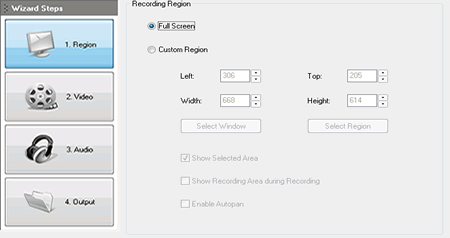
5. Select Custom Region option and click on Select Window
6. Switch back to your browser with the Youtube video loaded. Move your mouse over the Youtube video until you get a red rectangle border frame surrounding the Youtube Video as follow:
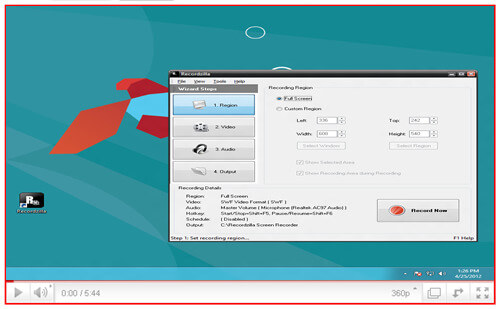
7. Press F4 to confirm the selection
8. On Recordzilla, click on 2. Video button and select the output video format that you wish to use
9. Click on 3. Audio button. Under record audio from,Look for "Stereo Mix, Stereo, Loopback, Wave, Wave Out Mix, Record Master or All". (Please note that the source name might be varies according to what sound cards you have)Windows Vista, Windows 7, Windows 8, or Windows 10 users please refer to this guide
10. Click on 4. Output button and set Save File Manually
11. Click on Record Now to start the video recording.
12. To stop a recording:
a) Using Hotkeys - Enter Shift + F5
b) Left-click on the System Tray red icon
c) Right-click on the System Tray red icon and select Stop Recording...
d) Right-click on the System Tray red icon, show Recordzilla and click on Stop recording button