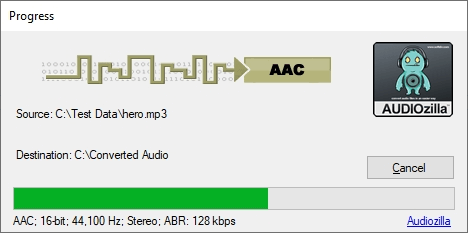
Effortlessly convert audio files to or from AAC format with our powerful AAC Audio Converter. Fast, reliable, and user-friendly for all your audio needs
Step-by-Step Guide: Convert Audio Files to AAC Using Audiozilla
Audiozilla simplifies the process of converting audio files to AAC format, making it quick and hassle-free. Here's how to use its AAC Audio Converter features:
Step 1: Select Your Audio or Video File
Open Windows Explorer and navigate to the folder containing your audio or video file. Supported file formats include: MP3, MP2, WAV, WMA, AAC, OGG, AC3, MP4, AIF, FLAC, M4A, WMV, ASF, CDA, AU, APE, and more. Right-click on the desired file to proceed.
Step 2: Access the Audiozilla Conversion Menu
In the context menu, find and hover over Audiozilla Convert to... From the submenu, select "AAC audio file(s)" to begin the conversion.
Step 3: Locate Your Converted Files
Once the conversion is complete, the destination folder will automatically pop up, showing your newly converted AAC files.
The trial version will allow you to try Audiozilla before you buy it.
Download Size: 20.7 MB
OS: Win 7, 8, 10, 11
Price: $ 29.95
Version: 1.2 (version history)