Learn how to apply grayscale photo effects to images in batch with the Batch Photo Editor software
In this tutorial, we will be applying grayscale effects to your images.
Step 1: Add Photos
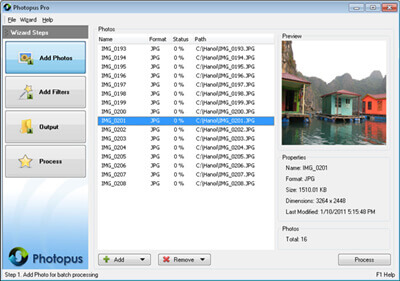
a. Click on Add button at the bottom and select Add Photo (s)
b. Select the images that you would like to apply grayscale effects
c. To remove images from the batch processing, select the images and click on Remove button at bottom and select Remove.
Step 2: Add Filters
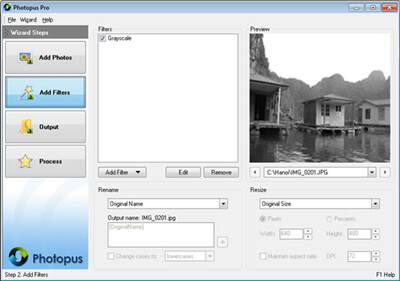
a. Click on Add Filter button, Effects, and select Grayscale
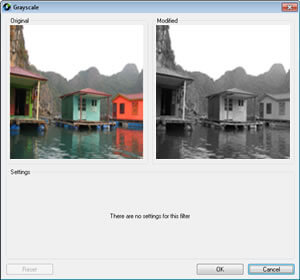
a. Grayscale settings screen will be loaded and showing the preview before and applying the filter.
b. Click on OK button to apply the effect.
Step 3. Output
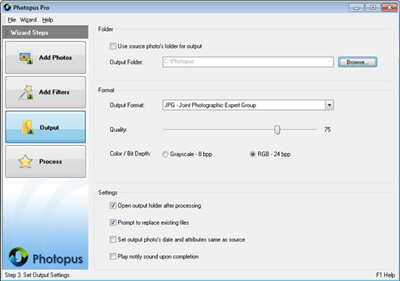
a. By default the output images will be saved at C:\Photopus . To change the output location, click on Browse button and select a new location. To use the source photo's path as output, check the Use source photo's folder for output.
b. By default the output image format will be JPEG. To change the output image format, select a new output format from the combo box.
c. You may customized to have the output location folder opened after the processing; Prompt asking for overwriting existing image file; Set the output image meta information same as the source image; Play notify sound upon completion.
Click on Process to start the processing.