Learn how to find and delete duplicate files on your computer with a Duplicate Cleaner software
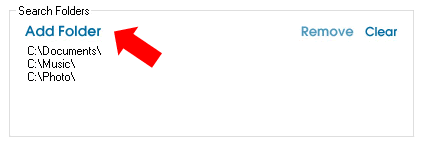
Step 1. First we'll have to add the Search Folders to be included for the search. Click on Add Folder to add Folders
Step 2. After adding the search folder, click on the Scan button at the bottom to start scanning for duplicate files

Step 3. You'll be brought to the Step 2. Scan Summary Screen. Under this area you will see the number of files scanned, duplicates found, space used, and the estimated time remaining.
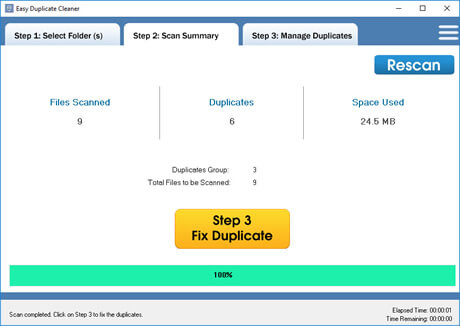
Step 4: Once the scanning is completed, you may click on Step 3 Fix Duplicate to manage the duplicate files.

Step 5. Under Step 3. Manage Duplicates you'll see a list of duplicate files listed and grouped accordingly. You may click on the file listed to get a preview of it.
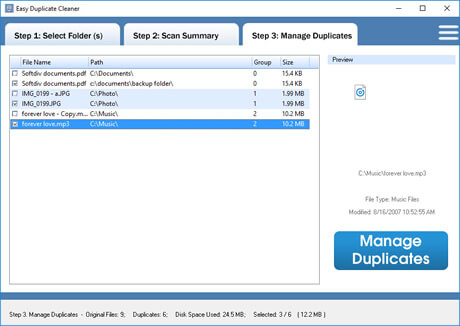
Step 6. Click on the Manage Duplicates button on the right for the list of actions available.

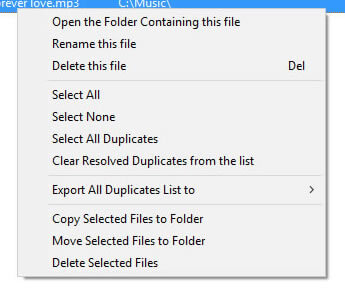
Menu will be shown and you may select any of the available action to manage the duplicate files.