Award Winning Audio & Video Software
Audio Software
Dexster
AUDIOzilla
Softdiv MP3 to WAV Converter
My Audio Cutter
DJ Mix Studio
Video Software
RECORDzilla
VIDEOzilla
SNOSH
Photo Software
Photopus Pro
Softdiv PDF to Image Converter
MyPhotoSweeper
Misc Software
Easy Duplicate Cleaner
Services
Forum
Download
Purchase
Upgrade
.
Softdiv Audio Converter
- Online Tutorials
Softdiv Audio Converter
- Awards and Reviews
Softdiv Audio Converter 3.5
Price:
USD 22
Platform:
Windows 98se, ME, XP, NT, 2000, 2003
Purchase
Softdiv Audio Converter Online Tutorials:
How to install Softdiv Audio Converter
How to Extract CD to MP3
How to Extract CD to WAV
How to use the CD Player
How to use shortcut keys
back to top
How to install Softdiv Audio Converter
1. Double click on the AudioConverter.zip and extract it to a location
2. Double click on the setup.exe file to begin the installation
3. Click on Yes button to begin the installation
4. Click on Next button to continue
5. Change the install location else click on Next button and click Install.
6. Click on Finish button to complete the installation.
back to top
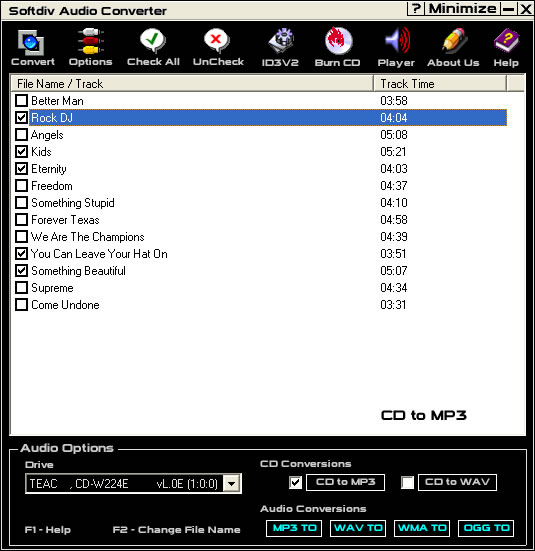
How to Extract CD to MP3
1. Insert Audio CD into CD-ROM.
2. Check the CD tracks that you wanted to convert into MP3.
3. Click on Convert button to start convert.
4. You can also Right Click your mouse and click on “Convert To MP3” or press F5 to start Convert
back to top
How to Extract CD to WAV
1. Insert Audio CD into CD-ROM.
2. Check the CD tracks that you wanted to convert into WAV.
3. Click on Convert button to start convert.
4. You can also Right Click your mouse and click on “Convert To WAV” or press F6 to start Convert.
back to top
How to use the CD Player
1. Press F4 to launch Audio Player
2. “Play” button - to start playing audio cd.
3. “Pause” button - to pause the audio cd.
4. "Stop” button - to stop playing the audio cd.
5. “Next” button - to play next audio cd track.
6. “Previous” button - to play previous cd track
back to top
How to use Shortcut Keys
F1 - Help
F2 - Change Track Name
F3 - Options
F4 - CD player
F5 - Convert CD to MP3
F6 - Convert CD to WAV
back to top
Home
Press
Download
Purchase
Links
Sitemap
About us
Copyright © 2001- 2017 Softdiv Software Sdn Bhd. All Rights Reserved.